AI study workflow · Updated May 2026
ChatGPT Study Mode for Students: A Safe Study Workflow With Prompts
ChatGPT Study Mode can be useful when it asks you to think instead of handing you final answers. This student guide shows how to use it for real learning without crossing academic-integrity lines.
Introduction
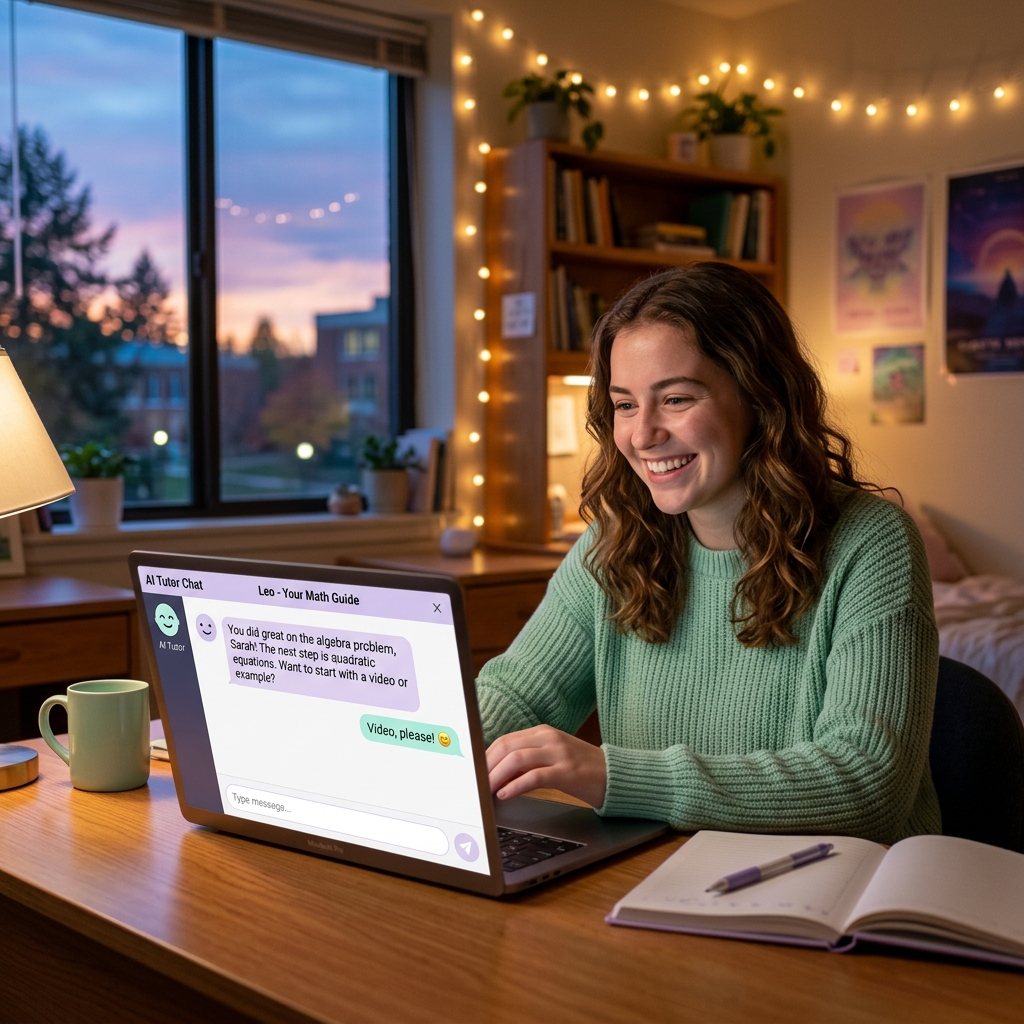
ChatGPT Study Mode is not just another way to ask an AI for answers. Used well, it can behave more like a patient tutor: it asks questions, checks your understanding, explains concepts step by step, and helps you turn mistakes into a review plan.
That difference matters for students.
The risky way to use AI is to paste in homework and ask for a finished answer. The useful way is to bring your real class material, attempt the thinking yourself, ask for hints and feedback, then verify the result against your notes, textbook, or teacher’s instructions.
This guide is for students who want help learning the material — not shortcuts that could break school rules. You’ll get a practical workflow, copy-ready prompts, safe-vs-risky examples, and a 20-minute study session you can follow before your next quiz or exam.
Quick note before you start: your school, teacher, university, exam board, or workplace policy always comes first. If a course says not to use AI for a specific assignment, do not use it for that assignment.
Quick verdict: what ChatGPT Study Mode is good for
ChatGPT Study Mode is best for active learning tasks where the AI helps you think. It is weaker — and potentially risky — when you use it to replace your own thinking or produce work you submit as yours.
Best uses
Use Study Mode for:
- Understanding difficult concepts from class.
- Turning notes into guided questions.
- Practicing one question at a time.
- Getting hints before full explanations.
- Explaining your answer back and receiving feedback.
- Making a review plan based on mistakes.
- Preparing for exams without asking for leaked or live exam answers.
A good Study Mode session should feel slightly effortful. If the AI is doing all the work, you are probably not studying deeply enough.
Not for
Do not use Study Mode to:
- Submit AI-written homework, essays, code, lab reports, or discussion posts.
- Answer live quiz or exam questions.
- Bypass rules about calculators, tutoring, collaboration, or AI assistance.
- Upload confidential exams, unreleased teacher materials, private student records, or restricted course files.
- Generate fake citations or pretend you read sources you did not read.
Think of Study Mode as office hours practice, not an answer machine.
What is ChatGPT Study Mode?
ChatGPT Study Mode is a ChatGPT learning experience designed to guide students through a topic step by step instead of simply giving a final answer. OpenAI describes it as a mode that uses interactive questions, hints, self-reflection, scaffolded explanations, personalization, and knowledge checks to support deeper learning.
According to OpenAI’s Study Mode FAQ, students can enable it by typing “/” and selecting “Study and learn” from the pop-up menu. The FAQ also says Study Mode can reference uploaded course materials such as images or PDFs, and that it can work with ChatGPT memory if memory is enabled.
The important student takeaway is this:
Study Mode may still make mistakes and may sometimes give direct answers. You still need to verify facts, formulas, citations, and steps against your class materials. It is a study partner, not an authority.
Study Mode vs normal ChatGPT vs NotebookLM vs Claude
Different AI tools can support different study jobs. The safest choice depends on what you are trying to do.
- Tool: ChatGPT Study Mode · Best student use: Guided tutoring, concept checks, practice questions, hints · Source handling: Can work with uploaded materials, but still needs verification · Risk level: Lower when used for learning; higher if used for final answers · When to choose it: When you want an interactive tutor that asks you to reason
- Tool: Normal ChatGPT · Best student use: Brainstorming, explanations, summaries, feedback, study planning · Source handling: Depends on what you provide and whether browsing/tools are available · Risk level: Medium; easy to slip into answer-copying · When to choose it: When you need flexible help but can set boundaries yourself
- Tool: NotebookLM · Best student use: Studying from uploaded notes, PDFs, slides, and source-grounded notebooks · Source handling: Stronger source-grounded workflow around your notebook materials · Risk level: Lower for note-based study, still needs checking · When to choose it: When your priority is “help me study these exact sources”
- Tool: Claude · Best student use: Long explanations, writing feedback, reasoning through dense material · Source handling: Useful with long pasted context; not a dedicated source notebook · Risk level: Medium; verify important claims · When to choose it: When you want thoughtful feedback or long-context discussion
For many students, the best workflow is not choosing one tool forever. It is choosing the tool that matches the study task. Use NotebookLM when your source packet matters most. Use Study Mode when you want tutoring and active questioning. Use Anki or Quizlet after the session when you need repeated recall.
The 5-step safe workflow for ChatGPT Study Mode
Step 1 — Bring your real class material
Start with your lecture notes, syllabus topics, textbook section headings, or your own attempted solution. Study Mode works better when it knows what you are actually studying.
Safe prompt:
I want to study this class material without cheating. I will paste my notes and learning goals. Please act as a tutor: ask questions, give hints, and help me understand, but do not write final assignment answers for me.

Class level: [high school / college / beginner / advanced]
Topic: [topic]
Goal: [quiz, exam, homework practice, essay planning]
Material: [paste notes or summarize source]
Before uploading anything, check whether you are allowed to share that material with an AI tool. Do not upload private records, unreleased exams, copyrighted slides that your course forbids sharing, or anything confidential.
Step 2 — Ask for a concept check, not final answers
Instead of asking “What is the answer?”, ask Study Mode to test what you understand.
Before explaining, ask me 3 quick diagnostic questions about this topic. Use my answers to decide what I need to review. Do not give me the final explanation until I try first.This turns the session into active recall. You learn more when you retrieve an idea from memory than when you only reread a polished explanation.
Step 3 — Let it quiz you one question at a time
One-question-at-a-time practice keeps you honest. It prevents the AI from dumping ten answers that you skim without thinking.
Quiz me one question at a time on [topic]. Wait for my answer. If I am wrong, give one hint first. Then ask me to revise before you explain the correct answer.Use this for definitions, formulas, historical events, grammar rules, coding concepts, lab procedures, and exam-style reasoning.
Step 4 — Explain your answer back
The fastest way to reveal weak understanding is to teach the idea in your own words.
I will explain [topic] in my own words. Please check my reasoning. Mark each part as accurate, unclear, missing, or incorrect. Ask follow-up questions instead of rewriting everything for me.If your answer is vague, ask for one targeted example. If it is wrong, ask for a hint and try again.
Step 5 — Create a review plan from mistakes
Do not end with “I get it now.” End with a mistake list.
Based on the mistakes I made in this session, create a 30-minute review plan. Divide it into: 5-minute recap, 15-minute active practice, 5-minute teach-back, and 5-minute flashcard/error-log update.This is where Study Mode becomes more than a chatbot. It helps you convert confusion into a repeatable plan.
Copy-ready ChatGPT Study Mode prompts
Concept explanation prompt
Teach me [concept] like a tutor. Start by asking what I already know. Then explain only the next missing piece. Use a simple example, then ask me to apply it to a new example.“Quiz me like a tutor” prompt
Quiz me on [topic] one question at a time. Mix easy, medium, and hard questions. Wait for my answer before giving feedback. If I am wrong, give a hint first, not the full answer.“Find gaps in my answer” prompt
Here is my answer in my own words: [paste answer]

Please evaluate it like a supportive tutor. Identify: correct points, missing steps, unclear wording, and any mistakes. Do not rewrite the answer for submission; ask me what I would change first.
“Make a 30-minute review plan” prompt
I have 30 minutes to review [topic]. My weak spots are [list]. Create a study plan that uses active recall, practice questions, and a short final self-test. Include what I should verify in my notes.Formula or problem-type prompt
I am learning this problem type: [problem type]. Do not solve my homework for me. Show the general method, ask me what step comes next, and give a similar practice problem after I try.Essay feedback prompt
I wrote this draft myself. Please give feedback on clarity, structure, evidence, and weak reasoning. Do not rewrite it for me. Ask me revision questions and suggest what I should improve in my own words.Safe vs risky examples
- Study task: Essay · Safer prompt: “Ask me questions to improve my thesis and evidence.” · Risky prompt: “Write my essay in my style so it won’t be detected.” · Why it matters: Feedback supports learning; ghostwriting can violate policy.
- Study task: Coding homework · Safer prompt: “Explain this error and ask me what I think caused it.” · Risky prompt: “Finish this programming assignment for me.” · Why it matters: Debugging guidance is different from submitting AI-written code.
- Study task: Math · Safer prompt: “Show the general method, then give me a similar practice problem.” · Risky prompt: “Give me the final answer to question 7.” · Why it matters: You need the reasoning, not just the number.
- Study task: Lab report · Safer prompt: “Help me check if my explanation of the method is clear.” · Risky prompt: “Invent results and write the discussion.” · Why it matters: Fabricated results are academic misconduct.
- Study task: Textbook reading · Safer prompt: “Quiz me on the section after I summarize it.” · Risky prompt: “Summarize the chapter so I don’t have to read it.” · Why it matters: Summaries can help review, but replacing reading creates false confidence.
A simple rule: if you would be embarrassed to show the prompt to your teacher, rewrite it.
When NotebookLM or Claude may be better
ChatGPT Study Mode is strong when you want interactive tutoring. But it is not always the best tool.
Choose NotebookLM when:
- You have a packet of notes, PDFs, slides, or readings.
- You want answers grounded in those uploaded sources.
- You want source-based study aids such as summaries, quizzes, or flashcards.
- You need to keep a study notebook around one class or exam.
Choose Claude or normal ChatGPT when:
- You want long-form feedback on your explanation.
- You need to discuss a complex concept in detail.
- You are brainstorming study plans, examples, analogies, or essay revision questions.
Choose Anki or Quizlet after the tutoring session when:
- You need repeated practice over days or weeks.
- You want flashcards from your mistakes.
- You are preparing for an exam that rewards fast recall.
Related AI Study Pilot guides to link internally:
- Use AI to study for exams without cheating:
/articles/use-ai-study-exams-without-cheating-7-day-plan.html - NotebookLM vs ChatGPT vs Claude for students:
/articles/notebooklm-vs-chatgpt-vs-claude-for-students.html - Best free AI tools for students:
/articles/best-free-ai-tools-for-students.html
Privacy and academic-integrity checklist
Before using Study Mode, run this checklist:
- Is AI allowed for this class, assignment, or exam?
- Are you using it for learning, practice, feedback, or planning — not final submission?
- Did you remove personal data, student IDs, private records, or confidential files?
- Are you allowed to upload the course material you plan to paste?
- Will you verify important facts against class sources?
- If your course requires disclosure, will you log how you used AI?
- Can you explain the final answer in your own words without AI?
UNESCO’s guidance on generative AI in education emphasizes policy, safety, age-appropriate use, teacher involvement, privacy, and human agency. For students, the practical version is simple: use AI in a way that still leaves you responsible for the learning.
20-minute study session example
Scenario: You have a biology quiz on enzymes tomorrow. You understand the basic definition, but you confuse active site, activation energy, and denaturation.
Minute 0–3: Set the rules
I am studying enzymes for a biology quiz. Please use Study Mode as a tutor. Do not just give me final answers. Ask me questions, give hints, and help me explain the ideas in my own words.Minute 3–7: Diagnostic questions
Ask me 3 diagnostic questions about enzymes: one definition question, one process question, and one application question. Wait for my answer after each.Expected output style: Study Mode asks one question, waits, and gives feedback.
Minute 7–12: Fix one weak point
If you missed activation energy:
I mixed up activation energy and active site. Explain the difference using a simple analogy, then ask me to apply it to a new enzyme example.Minute 12–16: Teach-back
Here is my explanation: [type your explanation]

Mark what is correct, what is unclear, and what I should fix. Ask one follow-up question that checks whether I really understand it.
Minute 16–20: Review plan
Create a 10-question mini review for tomorrow morning based on my weak spots. Include 5 flashcard-style questions and 5 application questions. Do not include answers until I attempt each one.At the end, write down the mistakes in your own notebook. That error log is more valuable than a perfect AI explanation you never revisit.
Common mistakes to avoid
Mistake 1: Letting AI explain for too long
Long explanations feel productive, but they can become passive. Interrupt with: “Ask me a question before continuing.”
Mistake 2: Studying from AI output only
AI can be wrong. Treat it as a study helper, then verify with your textbook, notes, slides, rubric, or teacher.
Mistake 3: Uploading material without checking rules
Some course materials are not meant to be uploaded to third-party tools. If you are unsure, ask your instructor or use a short summary you wrote yourself.
Mistake 4: Turning every prompt into a final answer request
If your prompt asks for a finished product, rewrite it as a tutoring request. Ask for hints, questions, feedback, examples, and practice.
Final recommendation
Use ChatGPT Study Mode when you want AI to slow you down in a good way. The best version of AI studying is not faster answer-copying. It is faster feedback, better questions, and more active practice.
Bring your real class material. Attempt first. Ask for hints. Explain back. Verify. Then turn mistakes into a review plan.
That is how Study Mode becomes a tutor instead of a shortcut.

Soundcore Space Q45 Noise-Cancelling Headphones
Premium hybrid active noise-cancelling headphones. Ideal for study sessions in noisy dorms, libraries, or cafes, keeping your focus isolated on your learning.
AI Study Pilot receives a small commission from qualifying Amazon purchases at no extra cost to you.FAQ
Is ChatGPT Study Mode allowed in school?
It depends on your school, course, assignment, and exam policy. It is generally safer to use AI for practice, explanations, planning, and feedback than for final submitted work, but your specific policy overrides general advice.
Can ChatGPT Study Mode give me answers?
Yes, it may sometimes provide direct answers even though it is designed to guide learning with questions and hints. That is why you should set boundaries in your prompt and avoid using it for live exams or graded answers.
Is Study Mode better than regular ChatGPT for exams?
For active exam prep, Study Mode may be better because it encourages questions, knowledge checks, and step-by-step reasoning. Regular ChatGPT can still help, but you need to be more careful to ask for tutoring instead of answers.
Should I use NotebookLM instead of ChatGPT Study Mode?
Use NotebookLM when you want study help grounded in uploaded notes, readings, PDFs, or slides. Use Study Mode when you want interactive tutoring, hints, and guided practice. Many students can use both: NotebookLM for source-based review, Study Mode for active practice.
What should I not upload to ChatGPT?
Do not upload private student records, confidential files, unreleased exams, personal data, restricted course material, or anything your teacher or institution forbids sharing with AI tools.
Can I use Study Mode for math, coding, or essays?
Yes, but use it differently by task. For math, ask for methods and similar practice problems. For coding, ask for debugging hints and explanations. For essays, ask for feedback and revision questions, not a rewritten submission.
Generated raster image briefs
Use AI Study Pilot’s clean blue/white study-tech visual style. Final images should be optimized WebP/JPG/PNG, not SVG placeholders. Avoid fake brand endorsements; logos can appear only as small contextual UI cues if source-safe.
- Hero image — “guided AI tutor desk”
- Placement: after intro.
- Brief: Realistic student desk, laptop with a calm blue AI tutor interface, notebook checklist reading “explain / quiz / review / verify,” soft morning light, AI Study Pilot blue accents, no readable real private data.
- Alt: Student using ChatGPT Study Mode as a guided AI tutor for safe studying.
- Study Mode vs normal chat comparison
- Placement: near comparison table.
- Brief: Split-screen educational visual. Left panel shows chaotic “answer machine” chat bubbles; right panel shows structured tutor questions, hints, and progress checkmarks. Clean, modern, student-friendly.
- Alt: Comparison of normal AI chat and guided Study Mode tutoring.
- Five-step workflow image
- Placement: before 5-step workflow or after Step 1.
- Brief: Laptop/tablet workspace with five numbered sticky notes: bring material, concept check, quiz, explain back, review mistakes. Blue glassmorphism UI, realistic stationery.
- Alt: Five-step safe ChatGPT Study Mode workflow for students.
- Safe vs risky prompt infographic
- Placement: above safe/risky table.
- Brief: Two-column card layout with green “safe prompts” and red “risky prompts,” icons for essay, coding, math, lab, reading. Clear labels, no tiny unreadable paragraphs.
- Alt: Safe and risky AI study prompt examples.
- Privacy and academic-integrity checklist
- Placement: before checklist.
- Brief: Notebook, lock icon, school policy sheet, and laptop with privacy toggle; calm trustworthy style, not fear-based.
- Alt: Privacy and academic integrity checklist for AI study tools.
- 20-minute study session scene
- Placement: before example session.
- Brief: Timer set to 20 minutes, biology notes, flashcards, laptop tutor interface, calm exam prep scene with blue accents.
- Alt: Twenty-minute AI study session with notes, timer, and flashcards.
Disclosure: AI Study Pilot may add affiliate links later. We recommend free-first tools where possible and never promise guaranteed grades or outcomes.