Notes & research · PDF workflow
How to Build an AI PDF Annotation System for Class Readings
A practical PDF annotation workflow that uses AI to preview readings, create margin questions, organize highlights, and turn notes into review prompts.
Quick answer
Use AI for PDF annotation after you make the reading visible and source-grounded: preview the section, mark your own highlights, ask AI to turn those highlights into margin questions, verify every summary against the page, and finish with active-recall prompts. Do not paste copyrighted books or private course packets into tools that your school forbids, and do not let AI replace the reading you are expected to do.
The safest setup is simple: read first in your PDF app, export only short notes or permitted excerpts, ask AI to organize them, then check the result against the original pages. This pairs well with AI PDF summarizer workflow, source evaluation checklist, and turn class readings into study blocks.
Why annotation beats plain summarizing
A summary tells you what the text says. Annotation records what you noticed, questioned, doubted, and need to remember. That makes it more useful for seminars, exams, and papers. AI can help organize annotations, but it cannot know which detail matters for your instructor unless you provide the assignment, learning objective, or discussion question.
The goal is not to produce perfect notes. The goal is to create a reading trail you can trust later: page number, quote or paraphrase, why it matters, and what you still need to ask.
The six-step workflow
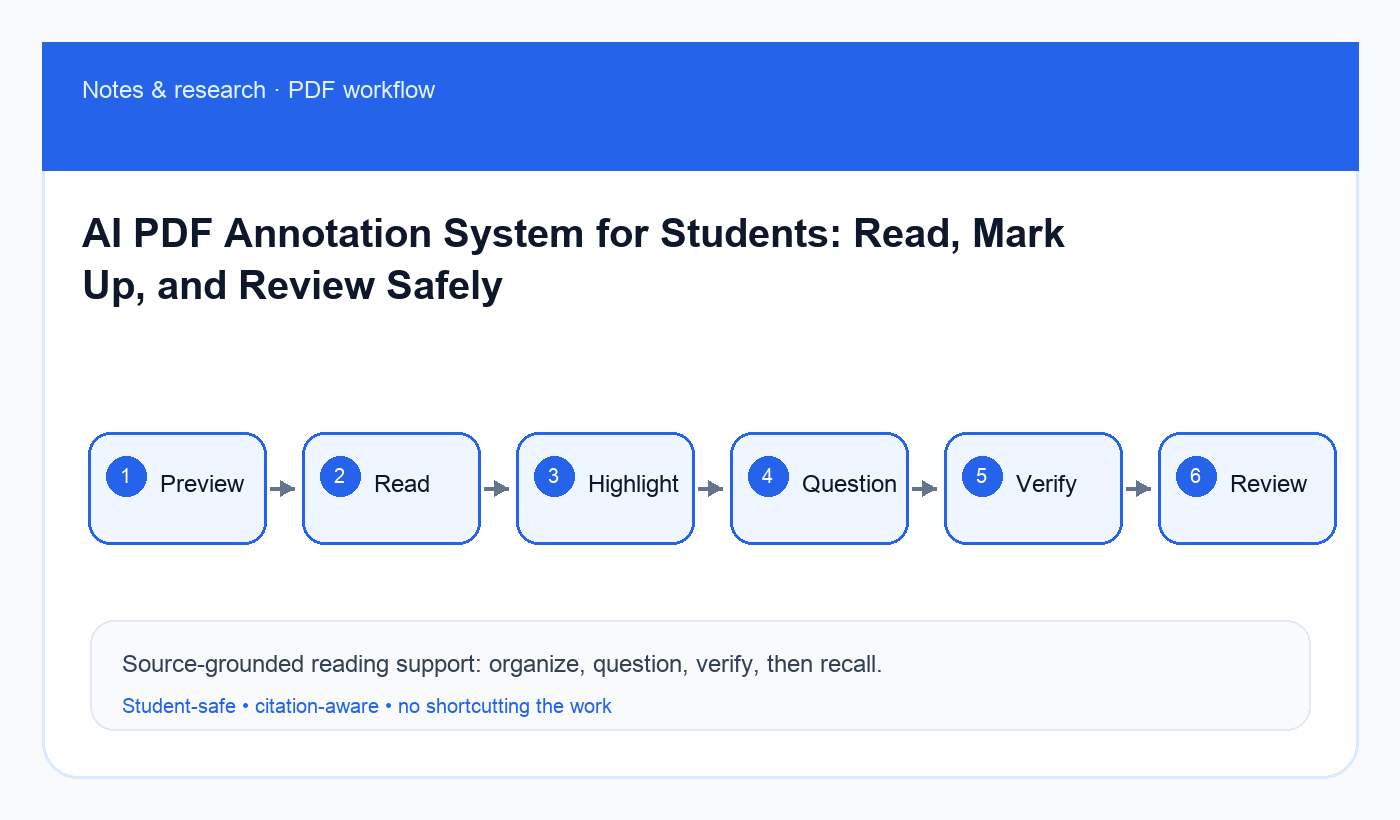
- Step: Preview · Student action: Scan headings, abstract, intro, conclusion · AI support: Predict structure and likely key terms
- Step: Read · Student action: Mark confusing claims and important evidence · AI support: Turn highlights into questions
- Step: Highlight · Student action: Keep highlights selective · AI support: Group highlights by theme
- Step: Question · Student action: Add margin questions · AI support: Create discussion prompts
- Step: Verify · Student action: Check every summary against page numbers · AI support: Flag uncertainty and missing evidence
- Step: Review · Student action: Convert notes into recall prompts · AI support: Build a short review sheet
Step 1: preview before using AI
Before asking for help, skim the title, abstract or introduction, headings, figures, and conclusion. Write a two-sentence guess about the reading: what problem it addresses and what you expect to learn. This makes AI assistance more accurate because you are giving it a target.
If the PDF is a research article, identify method, findings, limitations, and terms you do not know. If it is a textbook chapter, identify definitions, examples, formulas, and review questions. Different texts need different annotations.
Step 2: annotate in your own words
Highlight less than you think you need. If every paragraph is yellow, nothing stands out. For each important highlight, add one short note: “definition,” “evidence,” “counterargument,” “exam example,” “confusing,” or “connects to lecture.” Those labels make later AI organization much cleaner.
Keep page numbers. A beautiful AI summary without page references is weak study material because you cannot verify it quickly.
Copy-ready prompt: PDF annotation organizer
Act as a careful reading coach. Use only the notes and excerpts I provide. Do not invent claims, page numbers, citations, or author arguments.

Course context:
[paste class topic or assignment question]

My annotation notes with page numbers:
[paste short notes, highlights, or permitted excerpts]

Create:
1. A one-page reading map.
2. Key claims with page references from my notes.
3. Margin questions for discussion.
4. Confusing points I should reread.
5. Five active-recall questions.
6. Items that need verification in the original PDF.

If evidence is missing, write CHECK PAGE instead of guessing.
Step 3: turn highlights into questions
Questions are more useful than copied sentences. Convert “author defines X” into “How would I explain X without looking?” Convert “study found Y” into “What evidence supports Y, and what limitation weakens it?” This makes your PDF notes useful for exams and class discussion.
For research-heavy assignments, move strong annotations into a synthesis table using the literature synthesis matrix workflow. For exam-heavy classes, convert the same notes into flashcards with AI flashcards from notes.
Step 4: verify the AI output
After AI organizes your notes, open the PDF again. Check that page numbers exist, definitions match the author, and the summary does not add claims you never highlighted. If the model adds a useful idea, treat it as a search prompt, not as a fact.
A safe final annotation includes three labels: “verified,” “needs reread,” and “ask in class.” Those labels prevent a polished but shaky summary from becoming your study source.
Common mistakes
- Uploading more text than your course, copyright rules, or privacy comfort allow.
- Highlighting entire pages and expecting AI to find the point.
- Removing page numbers from notes.
- Memorizing AI-generated claims that are not in the PDF.
- Skipping your own margin questions.
Final recommendation
Use AI to organize annotations, not to avoid reading. A reliable PDF system starts with your highlights, keeps page references, turns notes into questions, and verifies every important claim against the original source.
Disclosure: AI Study Pilot may add affiliate links later. We recommend free-first tools where possible and never promise guaranteed grades or outcomes.